 Test your AI Agents with the all-new Agent to Agent Testing Platform.Learn More
Scale Your Automation Testing with AI
 Run end-to-end parallel tests & reduce test execution time by 5x
- Generate tests scripts using natural language with KaneAI
- Accelerate your testing process with Autoheal, SmartWait & RCA



- Automation
- Home
- /
- Learning Hub
- /
- How to Install Playwright: A Comprehensive Guide for 2026
How to Install Playwright: A Comprehensive Guide for 2026
Learn how to install Playwright with this step-by-step guide. Covers setup, install commands, and troubleshooting tips to kickstart end-to-end testing.
Last Modified on: November 18, 2025
- Share:
Whether you're just starting with end-to-end testing or migrating from other automation testing tools, this step-by-step guide will help you install Playwright framework to get started.
Overview
What Is Playwright?
Playwright is an open-source framework for fast, reliable end-to-end web testing across browsers, with support for multiple languages and advanced automation features.
How to Install Playwright Using Command Line?
Installing Playwright via the command line is quick and straightforward. It allows you to set up the framework directly from your terminal and get started with browser automation in minutes.
- Initialize a Node.js Project: Start a new Node.js project using the command npm init -y to manage dependencies and prepare your workspace for Playwright tests.
- Install Playwright: Add Playwright to your project using the command npm install -D playwright to enable browser automation and testing scripts.
- Install Browser Binaries: Download necessary browser binaries with npx playwright install so Playwright can run tests across Chromium, Firefox, and WebKit reliably.
- Run the Tests: Execute your Playwright tests using npx playwright test to verify that scripts function correctly across all configured browsers.
How to Install Playwright Using VS Code?
Installing Playwright through Visual Studio Code provides a more interactive and user-friendly setup. You can configure browsers, select your preferred language, and add sample tests directly within the editor, streamlining the testing workflow without leaving VS Code.
- Open VS Code and Create a Project Folder: Start by opening Visual Studio Code and creating a new folder for your Playwright project.
- Initialize Playwright Project: Open the terminal in VS Code and run npm init playwright@latest to set up the project.
- Follow Configuration Prompts: Choose your preferred language, select browsers, and configure other settings as prompted by the setup wizard.
- Install Playwright Test Extension: If suggested, install the Playwright Test VS Code extension to integrate testing features directly into your editor.
- Write and Run Tests: You can write tests in VS Code and execute them directly, or run npx playwright test in the terminal.
What Steps Are Necessary to Configure Playwright After Installation?
After installing Playwright, a few configuration steps help ensure your environment, browsers, and project structure are ready for reliable testing.
- Generate Playwright Config File: If a configuration file is missing, run npx playwright init to create default project settings.
- Install or Reinstall Browser Binaries: Use npx playwright install or specific commands to ensure required browsers are available for tests.
- Enable UI Test Runner (Optional): Run npx playwright test --ui to visually inspect, debug, and trace Playwright test executions.
- Run Sample Test to Verify Setup: Execute npx playwright test to confirm that all scripts and browser binaries are functioning correctly.
- Configure Project Structure & Test Folder: Adjust test directories, naming conventions, and environment settings within playwright.config.ts or playwright.config.js.
What Is Playwright?
Playwright is an open-source browser automation framework built by Microsoft. It lets you write end-to-end tests for web applications using a single API that works across Chromium, Firefox, and WebKit. You can use Playwright with JavaScript, TypeScript, Python, Java, and .NET.
It has built-in reliability features like auto-wait, trace viewer, and browser context isolation. Playwright also supports headless and headed modes, parallel execution, and full CI/CD integration. This makes it a solid choice for developers and QA engineers working in fast-paced teams.
If you want to learn more and get hands-on with Playwright, follow the Playwright tutorial, this guide will walk you through everything you need to get started quickly, even if you're new to browser automation.
How to Install Playwright?
Installing Playwright isn’t just about running a command, it’s about understanding what’s required, why each step matters, and how the setup leads to real browser automation. A good installation approach helps you prepare your development environment, ensures system compatibility, and sets you up to write and execute tests without confusion.
What Are the Prerequisites for Installing Playwright?
Before installing Playwright, make sure you have a few things in place.
System Requirements:
- Node.js Version: Requires Node.js 18 or higher along with npm, which comes bundled with Node.js for smooth installation.
- Operating System Support: Works on Windows 10+, macOS 12+, and Ubuntu 20.04+ ensuring reliable execution across modern platforms.
- Storage Requirement: Needs at least 2GB of free disk space for downloading and running browser binaries.
- Editor Recommendation (Optional): Visual Studio Code is recommended for easier debugging, file navigation, and project development.
- Additional Tooling Support: Git helps with version control and CI workflows, and Python, Java or .NET environments may be required when using those specific Playwright language bindings.
How to Install Playwright via Command Line?
Installing Playwright via CLI is quick and developer-friendly, allowing you to set up the framework directly from the terminal with minimal steps. With a simple Playwright install command, you can pull in the core package and be ready to run automated tests within minutes.
This method is best if you're setting up Playwright from scratch or want full control over your environment.
- Initialize a New Project: Set up a Playwright project with configuration, sample tests, and browser binaries ready for use.
npm init playwright@latestIf you are using yarn, run the given command below:
yarn create playwrightOr using pnpm, run the given command below:
pnpm create playwrightYou will be prompted to choose a language (JavaScript or TypeScript), a test folder, and whether to install recommended browsers and GitHub Actions config.
Once completed, you will get a Playwright config file, sample tests, and installed browser binaries.
npx playwright testTo watch the browser in action, run the given command below:
npx playwright test --headednpx playwright test --ui
Note: Run Playwright tests across 50+ real desktop browsers . Try LambdaTest Today!
How to Install Playwright in VS Code ?
Installing Playwright in Visual Studio Code provides a more interactive and user-friendly way to set up your testing environment. With the dedicated VS Code extension, you can configure browsers, choose your preferred language, and add sample tests, all without leaving the editor.
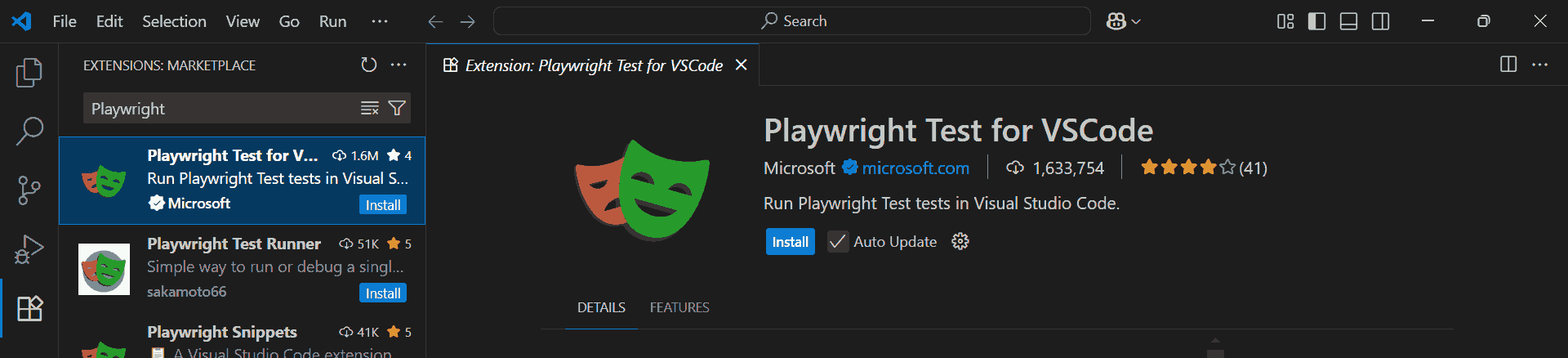
- Install Playwright Test for VSCode: Add the official Microsoft extension via the Extensions tab to enable Playwright support and access the install button directly in VS Code.
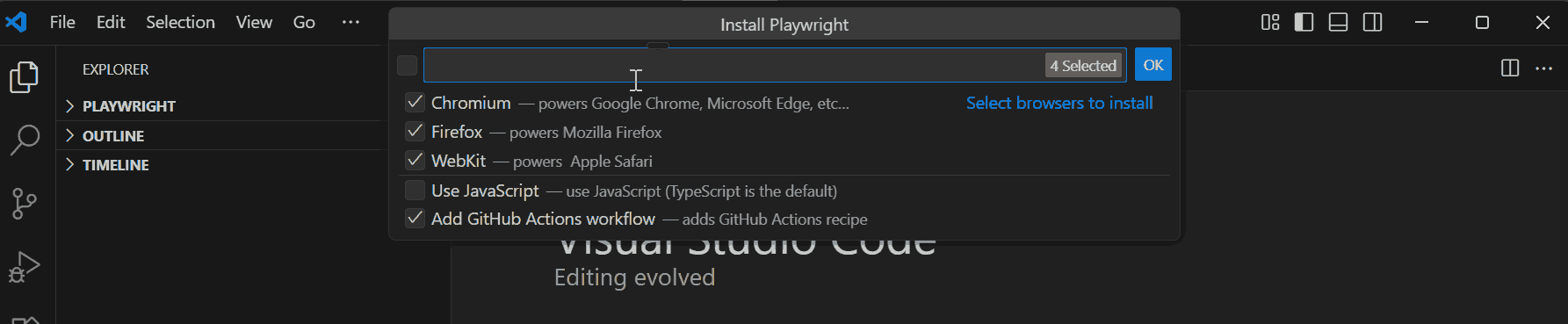
- Open an Empty Folder and Run Install Playwright Command: Open a folder in VS Code, then launch the command palette (Ctrl+Shift+P or Cmd+Shift+P) and search for “Install Playwright.”
- Follow the Prompts: The extension will guide you to choose browsers (Chromium, Firefox, WebKit), select JavaScript or TypeScript, add sample tests, and optionally set up GitHub Actions.
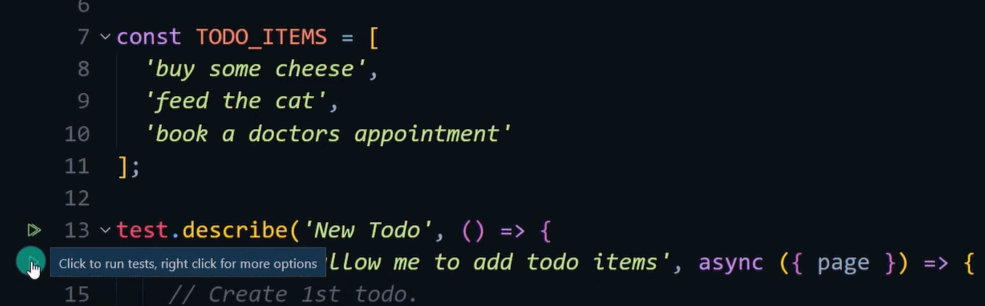
- Run or Debug Tests: After setup, you can use VS Code and Playwright to run tests or debug them directly from the sidebar using the green play and debug icons. The extension also supports Trace Viewer and displays test output logs.

You can also check out this video tutorial on setting up Playwright by Koushik Chatterjee. He is a Founder of LetCode and Senior Software Test Automation Engineer. Koushik brings close to 10 years of experience in test automation, specializing in building reliable frameworks and driving quality at scale.
How to Install Playwright on Other Languages?
Playwright is not limited to JavaScript and TypeScript; it also supports Python, Java, and .NET, making it versatile across different development environments.
Installing Playwright on these platforms allows you to write end-to-end tests in your preferred language while leveraging the same reliable browser automation features.
Each language has its own package manager and setup process, but the core concepts, browser support, and automation capabilities remain consistent. This enables teams to integrate Playwright into existing projects and CI/CD pipelines seamlessly.
For JavaScript:
Playwright JavaScript is one of the most common ways to run end to end tests. You can install Playwright using npm or yarn, and once installed, you may run npx playwright install to download browser binaries and start writing test scripts instantly.
npm i -D @playwright/test
npx playwright install
Playwright JavaScript provides fast automation and integrates smoothly with frameworks like Jest, Mocha, and CI pipelines.
For TypeScript:
Playwright works seamlessly with TypeScript, offering type-safety and better IntelliSense for end-to-end testing. You can install Playwright using npm or yarn, then run npx playwright install to download the required browser binaries before writing tests.
npm i -D @playwright/test typescript ts-node
npx playwright install
Playwright TypeScript enables scalable end-to-end testing with cleaner code, better predictability, and powerful developer tooling support.
For Python:
Playwright Python is widely used for reliable end to end testing. You can install Playwright via pip and then execute the playwright install command to download browser binaries and begin writing tests quickly.
pip install playwright
playwright install
Playwright Test framework combines with Python’s simplicity for end-to-end testing, and to get started you can follow a Playwright Python tutorial.
For Java:
Playwright Java offers strong cross browser automation support. You can install Playwright by adding its Maven dependency, making it easy to manage builds and run tests within Java based frameworks.
<dependency>
    <groupId>com.microsoft.playwright</groupId>
    <artifactId>playwright</artifactId>
    <version>1.17.0</version>
</dependency>
Once the dependency is added, generate the browser binaries using:
playwright installPlaywright Java enables fast UI testing with strong type safety and easy integration into enterprise CI/CD workflows.
For .NET:
With Playwright .NET you can automate end to end tests across multiple browsers. Use NuGet to install Playwright, then run the playwright install command to set up necessary browser binaries for execution.
dotnet add package Microsoft.Playwright
playwright install
Playwright .NET integrates cleanly with MSTest, NUnit, and xUnit for smooth debugging, parallel execution, and seamless test automation.
Why Test Playwright Scripts on Real Browsers?
To ensure your Playwright tests behave as expected in real-world usage, it's important to run them on actual browsers rather than relying solely on headless mode or local execution. Real browser testing helps expose browser-specific rendering differences, performance variations, and compatibility issues that emulation alone may not uncover.
A cloud-based platform allows you to run Playwright tests on real browsers, eliminating the need to manage local browser environments while ensuring accurate cross-browser testing. One such platform is LambdaTest.
LambdaTest is an automation testing platform that allows you to perform both manual and automated Playwright testing at scale across 3000+ browser and OS combinations.
It provides an easy and scalable way to execute Playwright tests on real browsers hosted in the cloud. Instead of maintaining local environments or downloading browser binaries manually, you can run your tests directly on Chrome, Firefox, Edge, and multiple browser versions using LambdaTest’s cloud grid.
By testing Playwright scripts on LambdaTest, teams can identify browser-specific issues early, ensure reliable cross-browser compatibility, and ship applications with higher confidence, all without the overhead of managing their own infrastructure.
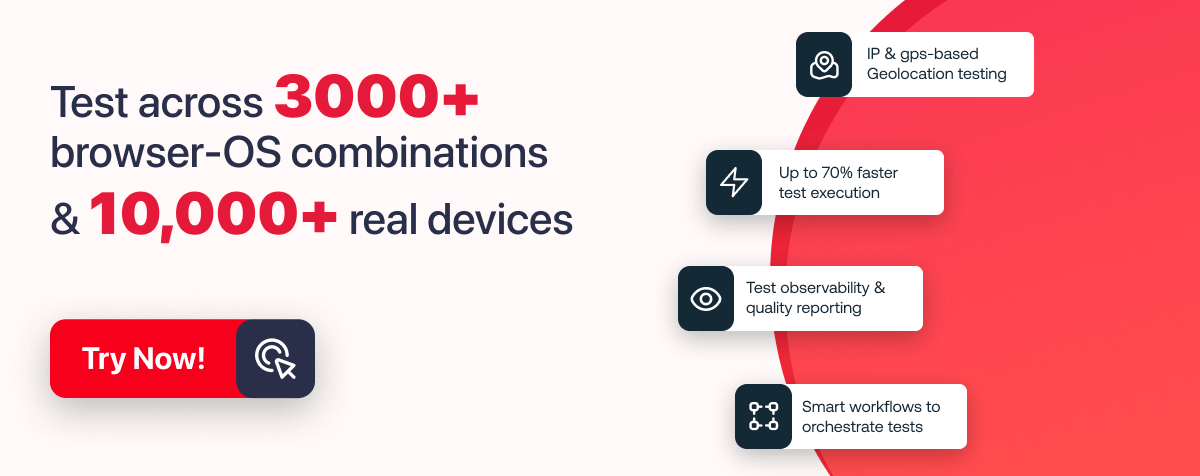
To get started, check out this guide on Playwright testing with LambdaTest.
Troubleshooting Common Playwright Installation Issues
Troubleshooting Playwright installation issues is often simple once you know where problems typically occur. Most errors stem from missing dependencies, blocked scripts, or browser binaries failing to download.
Below are the most common installation problems and how to resolve them quickly.
- PowerShell Execution Policy Error: If you see the message "File cannot be loaded because running scripts is disabled", it means PowerShell is blocking script execution. Run the setup using the following command or use Command Prompt instead:
powershell -ExecutionPolicy Bypass -Command "npm init playwright@latest"
node -v
npm -v
Restart your terminal if versions still do not appear.
npx playwright install
export NODE_TLS_REJECT_UNAUTHORIZED=0
npx playwright install chromium
What Should You Configure After Installing Playwright?
After installing Playwright, a few quick configurations help prepare your environment for smooth testing and debugging.
The steps below ensure you have browsers, config settings, and optional UI tooling ready to use.
- Generate Playwright Config File: Playwright automatically creates a config during project setup, but if missing, generate one manually:
npx playwright init npx playwright install
npx playwright install chromium
npx playwright install firefox
npx playwright install webkit npx playwright test --ui npx playwright test Conclusion
Installing and configuring Playwright properly is the first step toward building reliable, scalable end-to-end tests across multiple browsers and platforms. By following this guide, you can set up Playwright on JavaScript, TypeScript, Python, Java, and .NET, handle common installation issues, and leverage both local and cloud-based browser testing environments like LambdaTest.
With the post-installation configurations, interactive test runner, and cloud execution options, teams can catch browser-specific issues early, ensure cross-browser compatibility, and accelerate their testing workflows. Whether you are just starting with automation or scaling tests in a CI/CD pipeline, Playwright provides a robust and versatile solution for modern web application testing.
Start experimenting with Playwright today, run your first tests, and take advantage of real-browser testing to deliver high-quality web experiences with confidence.
Citations
- Playwright Installation Documentation: https://playwright.dev/docs/intro
On This Page
Frequently Asked Questions (FAQs)


Did you find this page helpful?


More Related Hubs


Start your journey with LambdaTest
Get 100 minutes of automation test minutes FREE!!